

 By
By Responsive Website Design (RWD) was first introduced to the world back in 2010 by Ethan Marcotte. Since its inception, RWD has become the go to design choice for professionals building their websites and it should be yours too, when building your site in EverWeb. Although this style of website design is often regarded as more complex than traditional website design methods, it’s the way in which every website designer should be heading.
So why is it so important to use RWD and not traditional website design methods? Well, search engines prefer responsive websites over traditional websites. So much so that search engines will preiorize responsive sites over traditional sites in search results. The second factor is mobile design. With RWD this is built in to the page design, so there’s no need to build a page for desktop devices and a corresponding page for mobile devices. The only page only paradigm is what search engines like. Plus the fact that most of our browsing and Internet searching is now done on mobiles makes it a no brainer.
What’s Responsve Web Design All About?
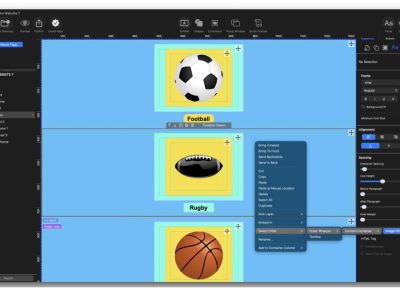
Responsive web design uses a grid layout for its pages. This grid structure can scales to suit any device the page is displayed upon. Imagine your page divided up in to horizontal rows that take up the full width of the page. These rows always stack one on top of the next, starting at the top of the page, going down the page. These rows always take up 100% of the page width, no matter how much you resize the page itself. Within each row will be your content. For example, the first row of the page, at the top, might be used for your page header content. This could contain, for example, your company name, company log and a navigation menu widget. When you change the width of the page, the contents in this row will automatically resize to fit.
As the page always resizes automatically to suit the device it’s being displayed upon, you only need to design one page, and not two, as you would using traditional website design methods.
About Full Width Rows and Objects
OK, so that sounds easy, in principle. Let’s first of all look at full width rows. These always take up 100% of the page width. There are caveats to this rule, but for the sake of this explainer, we’re going to keep things simple.
A number of different objects can be full width, for example, a TextBox, Shape, Image or widget, such as the Responsive Row widget or FlexBox widget. Although these objects are full width, you can apply left and right margins to them so that they don’t bump the sides of the browser window if you don’t want them too. You’ll find these settings in the Size section of the Metrics Inspector. Some widgets, such as the FlexBox widget, also allow you to add top and bottom margins as well.
In the up coming EverWeb 4.4 release, you’ll also be able to add top and bottom margins to all objects using the Metrics Inspector, so look out for this new version when it drops! It shouldn’t be long now!
If you are using a Full Width TextBox in your site, you might want to use the Minimum Font Size setting, so that as you reduce the page width the size of the text automatically scales towards the minimum font size that you selected. See our post on scaling text for more on this feature.
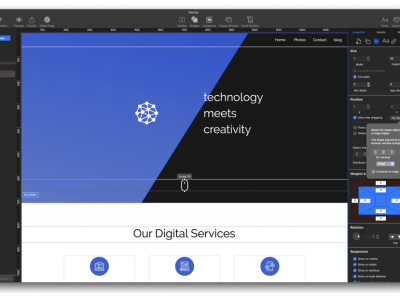
To check to see if an object is full width or not, click on the object in the Editor Window, then click on the Metrics Inspector icon. In the Size section, if the checkbox for Full Width is checked, then the object is full width.
Content in Full Width Objects and the Responsive Row Widget
So you can create the rows of your page using full width objects such as TextBoxes and widgets such as the FlexBox and Text Section widgets. There may be other instances, though, where you want to add a variety of objects in to a row. In this case, you’ll probably want to use the Responsive Row widget. This is a special type of container that can contain full width and fixed width objects. You can add any object in to a Responsive Row widget except for another Responsive Row widget. So adding TextBoxes, images, shapes widgets and media is easy, just drag and drop. The Responsive Row widget will organize the objects within it, but you can change the order of objects just by dragging them to where you want them located.
If you are adding fixed width objects in to the Responsive Row widget, we advise you to make them about 320 pixels wide. As the object is fixed, you will want make sure that it can be properly displayed on the smallest mobile device. Using a value of about 320 pixels will make sure that you don’t run in to any display problems.
Moving Objects Around a Responsive Page
You can drag and drop the full width rows up and down your page if you need to reposition them. Simply find a clear space within the full width object, then drag and drop it to its new location. If you’re using newer versions of EverWeb, you can also use the Move icon in the top right of the object, or the Up/Down arrows that display in the object itself to help make moving it easier.
Getting Started with a Responsive Website
Before embarking on your own responsive website, we recommend reading the chapter on Responsive Websites in EverWeb in the EverWeb User Manual. This chapter will take you through all things responsive! We also recommend checking out EverWeb’s YouTube videos as well so you get fully acquainted with how responsive websites work in EverWeb. Also don’t forget to checkout some of EverWeb’s responsive theme templates to get a better idea about how to design responsively and effectively!
Let us know about your experiences building a responsive site in EverWeb. If you have any questions, we will do out best to help!



 Loading ...

Comments