

 By
By Long time EverWeb users will know that the software has for a long time allowed you to add left and right margins to the pages of your site. However, this was restricted to full width objects within your site. In addition, when using some widgets, you could add padding to the objects in use within the widget, for example menu item objects in the Navigation Bar widget. Whilst these features have been useful, EverWeb 4.4 makes using padding and margins completely dynamic. Before we look at these newly expanded features, let’s start with a couple of definitions…
Defining Margins and Padding?
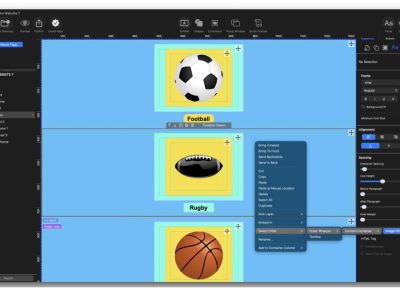
Margins apply to the outside of an object. In EverWeb, when you add a margin to an object a blue grid appears on the side of the object where the margin has been applied. You can apply a margin to any side of an object.
Padding, on the other hand, applies spacing to the inside of an object. As with margins, you can apply Padding to any of the inner sides of an object. You’ll see a dashed line inside the object indicating where the padding has been applied. If you only have padding, for example, on the left of the object, you will only see one dashed line. If you then apply padding at the bottom of the object, you’ll see the dashed line on the left and bottom sides of the object, and so forth..
Whilst you can apply margins to almost any object, you can only apply padding to certain objects such as TextBoxes, Shapes, the Responsive Row widget and Containers. You can apply padding to images as well, but this is really only useful when you want to add text over the image. For images you may want to use EverWeb’s Border Options instead to add framing to images.
Containers and Padding
Whilst EverWeb’s TextBoxes don’t add margins or padding by default, Containers include padding by default at 20 pixels per side. The reason for this is that Containers will typically have other objects within them, so setting a default padding inside the Container makes the presentation of the objects within the container look better. You can, of course, remove or change the padding as desired, but you can’t change the default padding value for Containers.
Using Margins and Padding
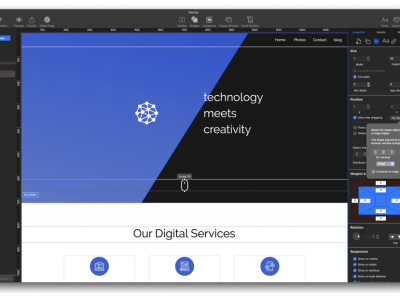
Applying margins and padding to the objects on your page is easy to do. Simply select the object that you want to apply the margins and/or padding to then click on the Metrics Inspector tab in the Inspector Window. In the Margins and Padding section, use the outer four fields to set the Margins you want and the inner four for padding. Remember that you can only apply padding to certain objects as we outlined above. When you set a margin you will see a blue grid pattern on the side of the object. When using Padding, you will see a dashed line appear inside the object.
Applying margins and padding is especially useful when you want to space objects vertically and/or horizontally within the Responsive Row widget or in a Container. Especially for the Responsive Row widget, this is a big improvement on its previous spacing abilities. Now you can add different margins to different objects within the widget.
The new padding options are also of most benefit when you use them within TextBoxes, making formatting and styling your text easier, especially when you are using a color background with your text. The same is true if you want to overlay shapes or images with text, it’s much easier to have this properly formatted now without hassle.
Widgets, Margins and Padding
In addition to the new Margins and Paddings section in the Metrics Inspector, you’ll also find that some widgets have specific options for padding and margins. Examples include the Navigation Bar widget, the Responsive Row widget as well as the Text Section and FlexBox widgets.
In addition, remember that for text you have margin settings in the Text Inspector as well as other formatting options such as before and after paragraph settings. Combine these features together with the new Margins and Padding feature to get the effect that you want.
EverWeb’s new Margins and Padding settings are a great way to expand the ways in which you can add styling and spacing to the objects in your site’s pages! let us know what you think of this new feature in the Comments Section below!



 Loading ...

Comments