

 By
By The big new feature of the recently released EverWeb 4.4 for macOS and Windows is the all new Containers feature. It’s such a big EverWeb event that the feature even gets a button in the Toolbar!
What is a Container?
A Container is just that: A receptacle that holds other objects inside it. In some ways it’s similar to EverWeb’s Responsive Row widget which has been around since EverWeb debut its responsive web design features back in version 2.8. Indeed, the Responsive Row widget even gets a place in the Containers button in the Toolbar, as it’s a container in its own right. But there are differences between Containers and the Responsive Row widget.
EverWeb Container Types
There are three different types of EverWeb Container, letting you add objects to them in the following ways:
- In a Row
- In a Column or
- In a Free Flow.
You can add virtually any kind of object in to a Container, for example, TextBoxes, Images, Shapes or different types of media, such as video, audio and even maps! In addition, you can add widgets in to Containers if you want to. The only exception to this rule is that you can’t aadd in Responsive Row widget which is a type of Container in its own right.
One of the main advantages of using a Container comes with embedding Containers within each other. Nesting, or embedding, Containers inside one another can revolutionise your design flexibility options. For example, you could have a design using a Free Flow Container which has Column and Row Containers embedded within it.
Where To use Containers
You can use Containers in both fixed width and Responsive page layouts, but it’s recommended for use only in Responsive pages. The advantage of using Containers in Responsive pages is that you can design elements of your page vertically or in free form rather than just being horizontal. You can also group objects together easily as well.
Planning Your Design
If you want your page design to contain layered elements or vertical, horizontal or free form design elements, consider using Containers. You might want to sketch out your design first before implementing it. If you’re updating the design of an exiting page, you might want to consider whether to replace widgets on your page with Containers if they better suit your design goals.
Adding Containers To The Page
As you would expect, there are many different ways in which you can add a Container to the page. The new Containers button in the Toolbar is the most visible way. There are other ways too, for example, most objects with the introduction of EverWeb 4.4 have their own context sensitive toolbars. If any of these toolbars has a plus sign within a rounded square icon, then clicking on this button will allow you to add a Container. Right clicking on an object may also be another way to add a container. If you see an ‘Add to Container…’ option then you’ll be able to add a Container. Again, the options you see when you right click are context sensitive. The last main way of adding a Container to an object is through the pink Plus button that Responsive Row widgets and Containers display when you first add them to the page.
Styling Your Containers
As you would expect, styling Containers is easy. Typically you’ll be using the Shape Options menu to add styling such as background color, borders, border line styling, scrolling effects and so on. You’ll also be using the Shape Options menu to change the type of Fill that the Container uses. This is how you add elements such as Map and Video Fill. You can also add comparable widgets to your widget, but first check to see which offers the features that you need. Sometimes, using e.g.Shape Options Map Fill has more features than using the Google Map Widget. Again, what you choose is down to what your design goals are.
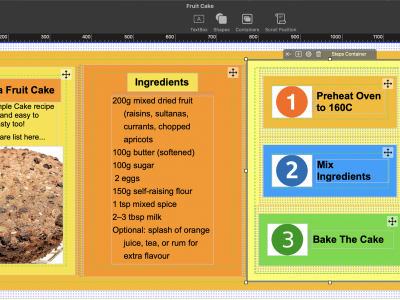
The other part of the styling of a Container is its padding and margins. As you’ll have noticed, when you add a Container it appears on screen with.dashed rectangle shape inside the Container. This represents padding that is automatically applied to a Container when you add one to the page. You can change the padding in the Padding and Margins section of the Metrics Inspector. As the section’s name implies, this is also where you can add margins to the objects within the Container if you need to. Usually when you have more than one object in a row or column, you’ll be wanting to add some margins to space the objects out.
Adding Objects In To A Container
Once you have a Container on the page, typically you’ll be wanting to add objects in to it. If the Container is already selected, just use the Plus icon in its Toolbar to add the object that you want. You can also, of course, drag and drop objects in to the Container as you want.
The objects in a Container can be easily moved around as well, just drag and drop them to where you want them. Also, don’t forget that you can use horizontal and vertical alignment options in the Container’s Toolbar if required.
One other way of adding objects in to a Container is by selecting the objects that you want to be in a Container, then right clicking and choosing the ‘Contain As..’ menu option. You’ll then see a submenu giving you the choice of Row, Column of Free Flow. Select the Container type you want. Once you have done this, the objects that you have selected will be contained in the Container you have chosen.
Adding Objects In to Containers
As you would expect, you can easily add objects, such as TextBoxes, Images, video, widgets, or other containers, in to a container.
Moving Objects Within a Container
Rearranging objects in a container is also as you would expect, just drag and drop.
Moving Objects Out of a Container
Moving objects out of a Container or from one Container to another is also just a case of drag and drop. There is one exception though, and that’s if you’re using a Free Flow Container. In this case, when you want to move an object out of the Container, hold down the Command Key on a Mac and the Alt Key if using Windows, whilst performing the operation.
Nesting Containers
One of the most powerful aspects of Containers is their ability to be nested. You can nest as many containers within each other as you design warrants. You cn also mix and match containers either inside each other or on the same level as each other. This makes it easy, for example, to combine horizontal content with vertical content. It also expands your design possibilities, especially for those using responsive pages in their sites.
Containers are a powerful, flexible tool that will expand your site’s design possibilities further than ever!





 Loading ...

Comments