
 By
By The main feature highlight for many EverWeb users in EverWeb 4.4 is the introduction of the Containers feature. It’s an important design tool that expands your design flexibility, especially when applied to Responsive websites. Let’s take a look at how Containers can be used in different website design scenarios…
Displaying Your Products and Services
If you’re selling products and/or services and you want to add product images and descriptions, you’ll naturally use a widget such as the PayPal Modern or Stripe widget. For more flair, though, you can use these in conjunction with nested Containers. In this way you can combine product titles, images, descriptions, prices and buy buttons together in your own way integrated with either the PayPal Modern or Stripe widget.
Information Containers
Containers are also a great way to impart information to your visitors as they make it easy to design the layout you want within which you can frame your info. You can nest Containers within each other so that the outer Container can act as a background which you can then color key appropriately. For example, information regarding a company’s Sales department may be color coded with a blue background, whilst information on Health and Safety could use a green background. You can even use video fill, maps or images within a container as well as heading and body text in TextBoxes. `Add a button shape within the Container if you want to add a ‘Call To Action’, such as a ‘Find Out More…’ button, which could take your visitor to a relevant blog page in your site.
Instructional Containers
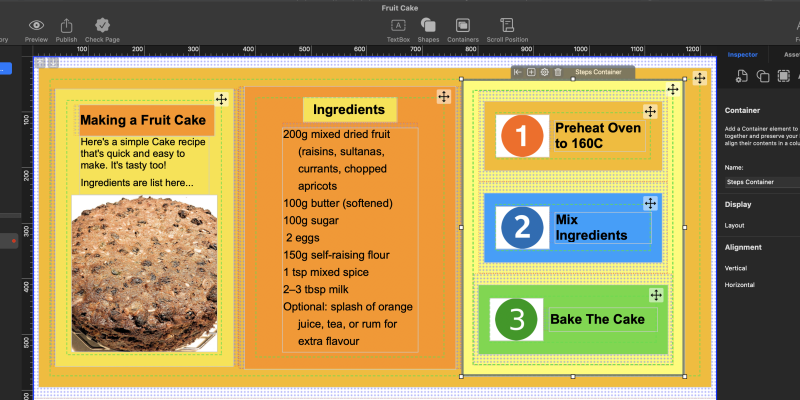
Another great use for Containers is for providing instructions. For example, you could add a circle shape to a Container that contains the step number in the middle to display instruction steps e.g. ‘1’, ‘2’ and so on… Then add the instruction itself in the Container usin ag TextBox. Again, color coded background Containers may be the order of the day. Large text and few words is recommended, as instructions should generally be brief, to the point and unambiguous in their meaning.
Instructions are useful for many different scenarios, from baking a cake to evacuation procedures. You’re only limited by your imagination!
Social Media Containers
Grouping your site’s social media buttons is a great idea and a good use of Containers. Typically, you’re going to add this feature to a Master Page so that it can be used throughout your site. You’ll probably also want to add your social media Container to your Blog Posts Preview Window in the posts page of your blog if you have one, so that it appears in all of your posts.
Navigation Containers
EverWeb’s Navigation Bar widget is usually the default way in which to create a navigation menu for your site, but you could design your own using Containers instead if you prefer. You would typically do this where you want the navigation to be in a column, grid, or in a free flow structure. When designing a menu structure, you may find it useful to have an outer Responsive Row widget that has multiple Column, or Row, Containers within it. In this way you can ensure that as the browser width changes, the Containers within the Responsive Row will conform properly to the change in browser width.
Bespoke Image Galleries
Another useful way to use Containers is for image display. EverWeb already includes the great Responsive Image Gallery widget and the Image Gallery widget, but if you want to create something bespoke then Containers are the way to go. You can add images, text, links and buy buttons all together. For example, if you’re selling 10 images on one page, you may want to highlight one image by making it larger and giving its own Container a different colored background.
Styling Your Site
One of the general uses that you can use Containers to is to add styling features to your site. Nesting Containers within each other gives you the prefect way to apply your own background to the Containers that are layered on top. With the Container selected, just go to the Shape Options tab then click on Fill section’s dropdown menu. Choose one of the fill types that you want to add the background of your choice. This is also a great way to add video and map fills to your Container if you want.
Grouping Items Together
Containers are a great way to effectively group objects together. EverWeb does have the Arrange-> Group option, but this is restrictive and foes not give you the flexibility that Containers do in design flexibility. Containers also allow you to nest the same, or different Container types within each other. These abilities really come in to their own when used in Responsive websites as they help you create designs that give a more free format feel to them whilst remaining in a structured grid layout.
Widget Replacement
As you can see, we’ve already discussed using Containers to replace widgets such as the Navigation Bar and Responsive Image Gallery widget. EverWeb’s built in widgets give you incredible flexibility to easily add responsive design features to your site. However, there may be cases where you want to build you own solution instead of using a widget. Containers introduce such a way to bring out the designer in you!
EverWeb’s Containers are a great way to expand your design possibilities within Responsive websites. We believe that the current version of EverWeb is only the start for Containers, and that future EverWeb versions will expand their capabilities giving you even more flexitime and possibilities in future!
Have you tried EverWeb’s Containers or do you have a question about them? Let us know in the Comments section below. We’re looking forward to your feedback on this feature!



 Loading ...

Comments